

Webhook Setup
Make Paddle the source of truth for every order — not just the ones where the customer’s browser cooperates.
As of v1.1.6, PaddlePay uses a Paddle webhook to turn a paid transaction into a WooCommerce order. This is what makes order creation reliable for every customer — guests and first-time buyers included — not only repeat customers whose browser stays open long enough to report success back to the site.
Why this matters
Previously, a WooCommerce order was only created when the customer’s browser sent a follow-up request after Paddle’s checkout finished. If that request never arrived — the tab closed right after paying, a network hiccup, an ad blocker, or an error while a new guest account was being created — Paddle had the money, but WooCommerce never found out. No order, no download-link email, nothing in WooCommerce → Orders.
The webhook fixes this because it comes directly from Paddle’s servers, independent of what happens in the customer’s browser.
1. Create a notification destination in Paddle
- Log in to the Paddle Dashboard.
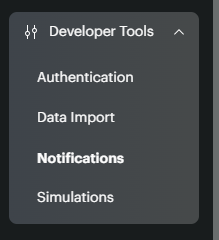
- Go to Developer tools → Notifications.
-
- Click New destination (or open your existing one, if this site already has one).

- Fill in:
- Description — anything recognizable, e.g. “WooCommerce — production”.
- Notification type —
URL. - URL — your site’s webhook endpoint:
https://yourdomain.com/wp-json/webhook/v1/receive
If WordPress is installed in a subdirectory (e.g.
yourdomain.com/shop), include that segment. Confirm the correct base URL under WP Admin → Settings → General → Site Address (URL).- API version — latest available.

- Under Events, subscribe to at least:
transaction.completedtransaction.paid
Other transaction/subscription events can stay subscribed too — anything besides these two and
price.updatedis currently logged but not acted on. 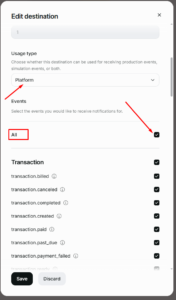
- Save the destination. Paddle shows an endpoint secret key starting with
pdl_ntfset_.... Copy it now — Paddle won’t show it again.
Sandbox vs. live
Paddle sandbox (test mode) and live accounts each have their own notification destinations and secrets. If you test in sandbox mode, create a separate sandbox destination and use its secret while test mode is enabled in the gateway settings — then switch to the live destination’s secret when you go live.
2. Add the secret to PaddlePay
- In WordPress, go to WooCommerce → Settings → Payments → PaddlePay Checkout.
- Paste the secret into the Webhook Secret Key field.
- Save changes.
Until this field is filled in, the webhook endpoint still accepts and processes events — so existing setups don’t break — but it can’t verify they actually came from Paddle. Setting the secret turns on signature verification and closes that gap. Do this before relying on the webhook in production.
3. Map products to Paddle prices
The webhook resolves each line item back to a WooCommerce product using the Paddle Price ID stored on the product — the same mapping already used at checkout. Every product sold via Paddle needs its Price ID (and, in test mode, its separate test Price ID) saved on the product edit screen. A transaction whose price ID isn’t mapped to any product is logged and skipped — no order is created for it — so check this first if a specific product’s orders aren’t showing up.
4. Verify it’s working
- Place a real (or sandbox) test purchase using an email address that has never been used on the site before.
- Check WooCommerce → Orders — an order should appear shortly after payment, with an order note reading “Paddle transaction fulfilled via webhook.”
- Confirm the download-link email was sent (WooCommerce → Status → Logs, or the test inbox itself).
- In the Paddle Dashboard, open Developer tools → Notifications → your destination → the event — it should show a
200response.
Troubleshooting
| Symptom | Likely cause |
|---|---|
| Webhook shows 200 in Paddle, but no order appears | Check the site’s debug log for lines starting “PaddlePay Webhook:” — they state exactly why fulfillment stopped (no product mapped to the price ID, no customer email resolved, order creation failed, etc). |
| “Signature verification failed” in the log | The secret in Webhook Secret Key doesn’t match the destination Paddle actually sent from — confirm it’s the right destination’s secret (sandbox vs. live) with no extra whitespace. |
| Order created but for the wrong product, or with no items | The transaction’s price ID has no matching Paddle price meta on any product — recheck the product’s Paddle price mapping. |
| Works in sandbox, not live (or the reverse) | You’re using the sandbox secret with a live destination, or the reverse — each Paddle environment has its own destination and secret. |
| Duplicate orders | Should not happen — fulfillment is keyed on the Paddle transaction ID and is idempotent. Report it with the transaction ID and both order IDs if it occurs. |
What still runs client-side
The browser-side checkout flow still runs and, when it succeeds, creates the order immediately for a fast redirect to the download page — a UX nicety, not something to rely on. The webhook is the guarantee: whichever path completes first wins, and the other is a no-op thanks to the idempotency check above.